
Lumber Empire Factory Automation: Workers, Conveyors and Output
Last updated:
A steady production line needs wood arriving, machines connected, and finished products moving toward trucks. Connect those stages to keep your Lumber Empire factory running while you are in the game.
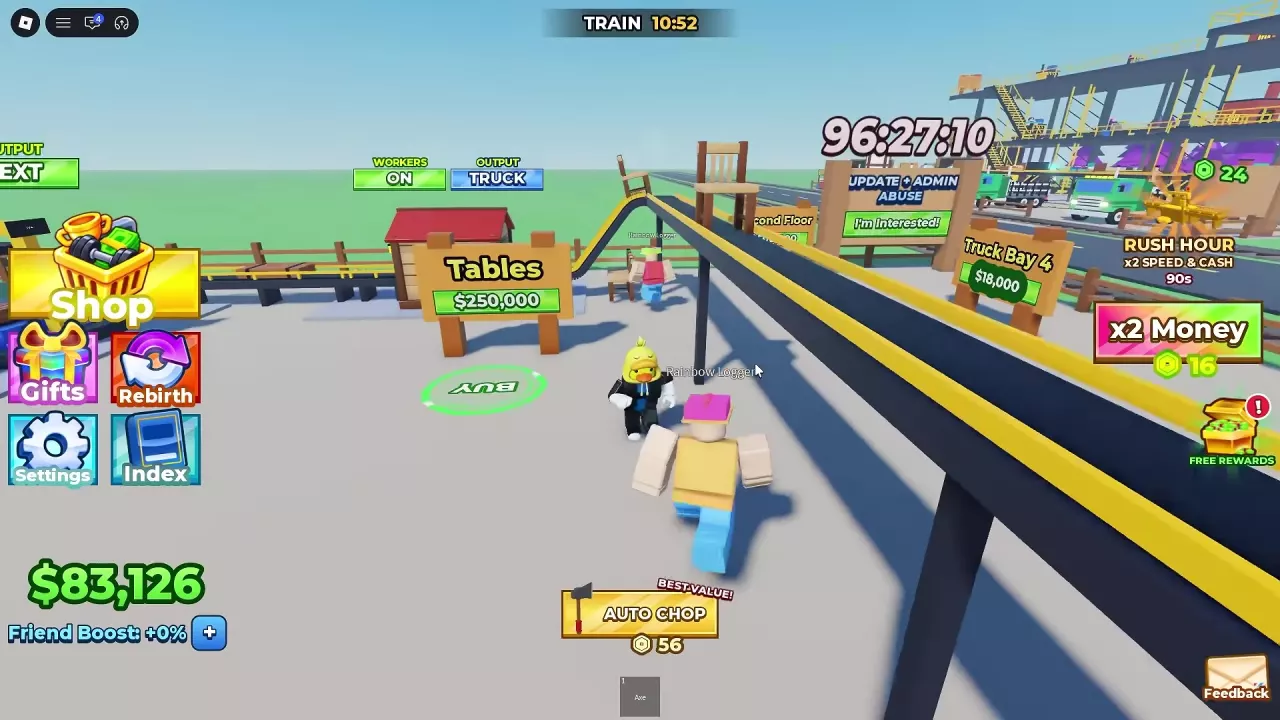
Hire workers to chop and carry wood, build conveyors between processing machines, and extend the Truck Conveyor to the stage you want to sell from. NEXT sends output onward for processing; TRUCK sends it toward trucks through a built connection. Set WORKERS separately at each node. If production stops, first check whether input is empty or products are backing up downstream.
What Workers and Conveyors Handle
| Part of the factory | Job |
|---|---|
| Workers | Chop trees and carry logs and processed wood. |
| Conveyors between machines | Move materials into the next connected processing stage, reducing hauling between machines. |
| Truck Conveyor | Carry output from a connected production stage toward truck loading. |
These systems work together during online play. Workers supply the line, machines process the wood, and conveyor connections move it onward. You can help by chopping trees while workers carry the logs, or by delivering logs to a machine's LOGS IN entrance.
Connect Supply, Processing and Truck Delivery
- Go to the WORKERS stand and use the HIRE area to hire workers for wood supply.
- Build the processing equipment you want to use. The machine guide explains what each stage produces.
- Buy the conveyor connections between those machines. Building a machine and connecting its input are separate parts of the setup.
- Extend the Truck Conveyor to the production stage whose output you want to send to trucks. Purchase the extension for that destination.
Truck Conveyor also appears on purchase signs as Truck Conveyer. Prices belong to specific construction points: the forest-side purchase costs $25,000, while a Truck Conveyor rebuilding purchase after rebirth costs $1,500. Treat these as separate purchase conditions, not a universal rebirth discount.
Later extensions reach Bundler II and Workshop II, and the third-floor Workshop also has a truck route. For access to those production areas, see second- and third-floor construction. If an extension purchase reports a cash shortfall, earn the remaining amount before completing it.
Understand OUTPUT NEXT and TRUCK
| OUTPUT route | Destination | Required connection |
|---|---|---|
| NEXT | The next processing stage | A conveyor connecting the production stages |
| TRUCK | Truck loading | A Truck Conveyor extension serving that stage |
Use the NEXT route when you want the material processed further. Use the TRUCK route at the stage whose product you want to send for sale. The route needs its corresponding connection built; an output label alone does not replace that construction.
The first Workshop illustrates both connections. Once the Workshop is built, its $40,000 Conveyor brings material in from the processing line using NEXT. The separate $60,000 Truck: Workshop purchase extends the truck route to its output. With that connection built, Workshop output is TRUCK and chairs travel away along the elevated conveyor.
For Workshop unlocks, construction and furniture upgrades, follow the chair, table and bed production guide.
Set WORKERS for Each Production Node
WORKERS is a separate ON/OFF control at each production node. It controls worker handling there, rather than acting as a master switch for the whole conveyor line.
- Leave ON at nodes that still need workers to handle materials. Keep the first Workshop's WORKERS setting ON in the truck-connected chair setup described above.
- Turn OFF at nodes where the connected conveyors handle the required movement. Some nodes can have worker handling disabled while their conveyors continue carrying wood.
- After adding machines or a new floor, check each new node individually. Look at how materials arrive and leave before deciding whether worker handling is unnecessary.
Use the material flow at each node to choose its setting; turning every WORKERS switch OFF is not a suitable default for every factory.
Check an Empty or Backed-Up Production Line
A filled production line can stop accepting more logs, including logs delivered by workers. Start at the stalled machine and distinguish missing supply from output that cannot move onward.
- Inspect the input. If it is empty, check whether workers are bringing wood. Help supply the line by chopping trees or delivering logs to LOGS IN where applicable.
- Inspect the output and next stage. If products are piling up, follow the route downstream before adding more incoming wood. Look for the point where materials stop moving.
- Check the physical connection. Confirm that the conveyor to the next machine, or the Truck Conveyor extension to the sales route, has been purchased.
- Check OUTPUT. Match the route to your intended destination: further processing or truck loading.
- Check WORKERS at the affected node. If that stage relies on workers, keep its worker handling enabled.
An empty input points you toward supply. A pile of processed products points you toward the next stage or the delivery route. Use that distinction to decide what needs attention before spending on more workers or faster processing.
Choose the Next Automation Upgrade
Spend on the part of the line that is holding back production:
- Machines keep running out of wood: prioritize the workforce if chopping or hauling cannot keep up. More workers and upgrades to speed, carry capacity or axe power address different supply limits; compare them in the worker hiring and upgrade guide.
- Materials reach a machine, but processing is slow: look at that machine's available upgrades once its exit route is clear. Use the machine guide to identify the processing stage that needs attention.
- Finished goods reach the truck route, but delivery cannot keep up: look at truck capacity and delivery improvements in the truck and delivery guide.
Complete missing connections before buying speed upgrades. Faster chopping or processing will not finish an unbuilt route to the next stage.